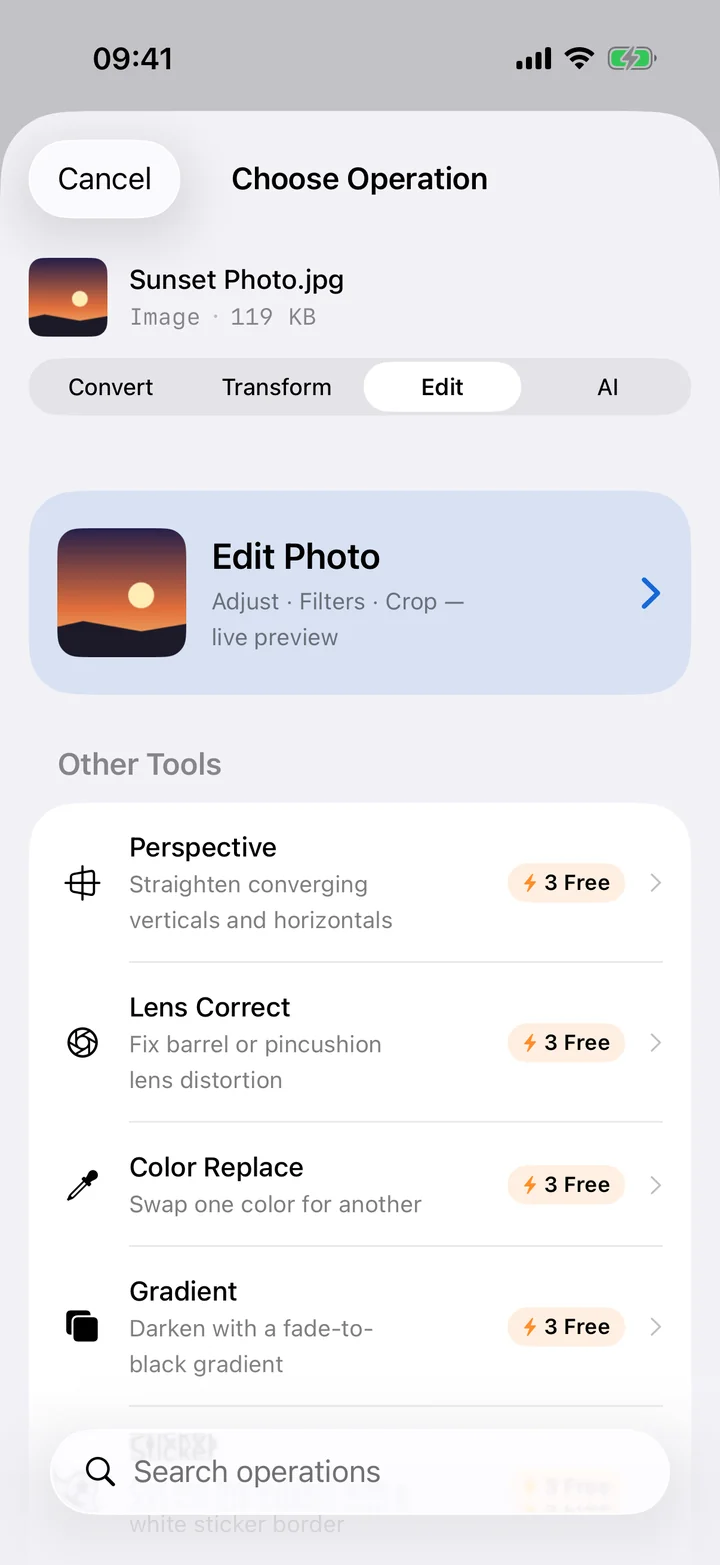
Background removal is one of those edits that feels like it should be hard. You picture lassoing edges by hand or paying for a subscription tool. In practice, the heavy lifting — figuring out where the subject ends and the background begins — is exactly the kind of task on-device machine learning is good at. The newer iPhones ship with a subject-detection capability built into Vision, the same technology Photos uses when it lets you lift an object out of a picture. An app that taps into it can give you a clean cut-out in seconds, without sending your photo anywhere.
That on-device angle matters here more than usual. Background removal is popular for product shots, profile pictures and personal photos — images you often don't want sitting on a remote server. Doing it locally keeps the original and the result entirely on your iPhone.
How to remove a photo background on iPhone
Pro
- Add your photo. Open Filemorph and pick the image from Photos, Files, or the Share sheet. A photo with a clear subject and decent contrast gives the cleanest result.
- Choose Remove Background. Select the background-removal tool. Vision detects the main subject on-device and isolates it from everything behind it.
- Save as PNG. Export the cut-out as a PNG so the empty area stays transparent. The result is saved locally — share it, drop it onto a new background, or AirDrop it.
Why save it as PNG
The format you save in decides whether the cut-out is actually useful. PNG supports an alpha channel — transparency — so the region where the background used to be becomes see-through. That lets you place the subject on a solid colour, a brand background or another photo. If you saved as JPG instead, the transparent area would be flattened to a solid fill, defeating the point. So for any cut-out, reach for PNG.
Tips for a clean cut-out
Subject detection is good, not magic. You'll get the best edges from photos where the subject is well-lit and clearly separated from the background — a person against a wall, a product on a table, a pet on grass. Very busy or low-contrast backgrounds make the boundary ambiguous, and fine detail like flyaway hair is the classic hard case for any tool. If a photo doesn't cut cleanly the first time, a version with better lighting or a simpler background usually does.
Do more with the cut-out
Once you have a transparent subject, the image toolkit lets you resize, crop or compress it for wherever it's headed — a listing, an avatar, a design. Background removal sits alongside the other on-device intelligence in Filemorph's AI & Vision tools, which include OCR, document detection and image classification, all running locally. Nothing here calls out to a server: Filemorph performs the detection and the export on your device, with no account and no upload, so even sensitive photos stay private from start to finish.