Storage fills up in two ways: a slow drip of everyday photos, and a few oversized files that quietly eat a disproportionate slice. Tackling the second group first is the fastest path to breathing room, because the savings are concentrated. Before you start, it helps to know what actually weighs the most so you spend your effort where it counts.
On a typical iPhone, video is the heavyweight — 4K footage and slow-motion clips can run hundreds of megabytes per minute. After that come large photo bursts, edited images saved at full resolution, screenshots that pile up by the thousand, and PDFs or attachments you saved and forgot. Knowing this order lets you triage instead of deleting at random.
Compress the big videos first
One five-minute 4K clip can outweigh a thousand photos. Re-encoding a video at a sensible resolution and bitrate often cuts the file to a fraction of its size while still looking great on a phone screen. Keep the pristine original of anything precious if you like, but for the everyday clips you mainly want to keep around, a compressed copy is plenty. Filemorph's video tools let you transcode and compress on-device, with a quality control so you decide how aggressive to be.
Shrink high-resolution photos
Modern iPhone cameras produce large images, and edited or imported photos can be larger still. Resizing or compressing the ones you don't need at full resolution — anything destined for messaging, social posts or simple keepsakes — trims megabytes without a visible difference at normal sizes. The image toolkit handles resize and compress with a quality slider, so you stay in control of the trade-off.
Don't overlook documents
Photo-heavy PDFs — scanned receipts, multi-page documents, image exports — can be surprisingly large. Compressing a PDF can shrink it dramatically with little visible change, which also helps when a file is too big to email. See how to compress a PDF on iPhone for the step-by-step.
Do it in batches, on-device
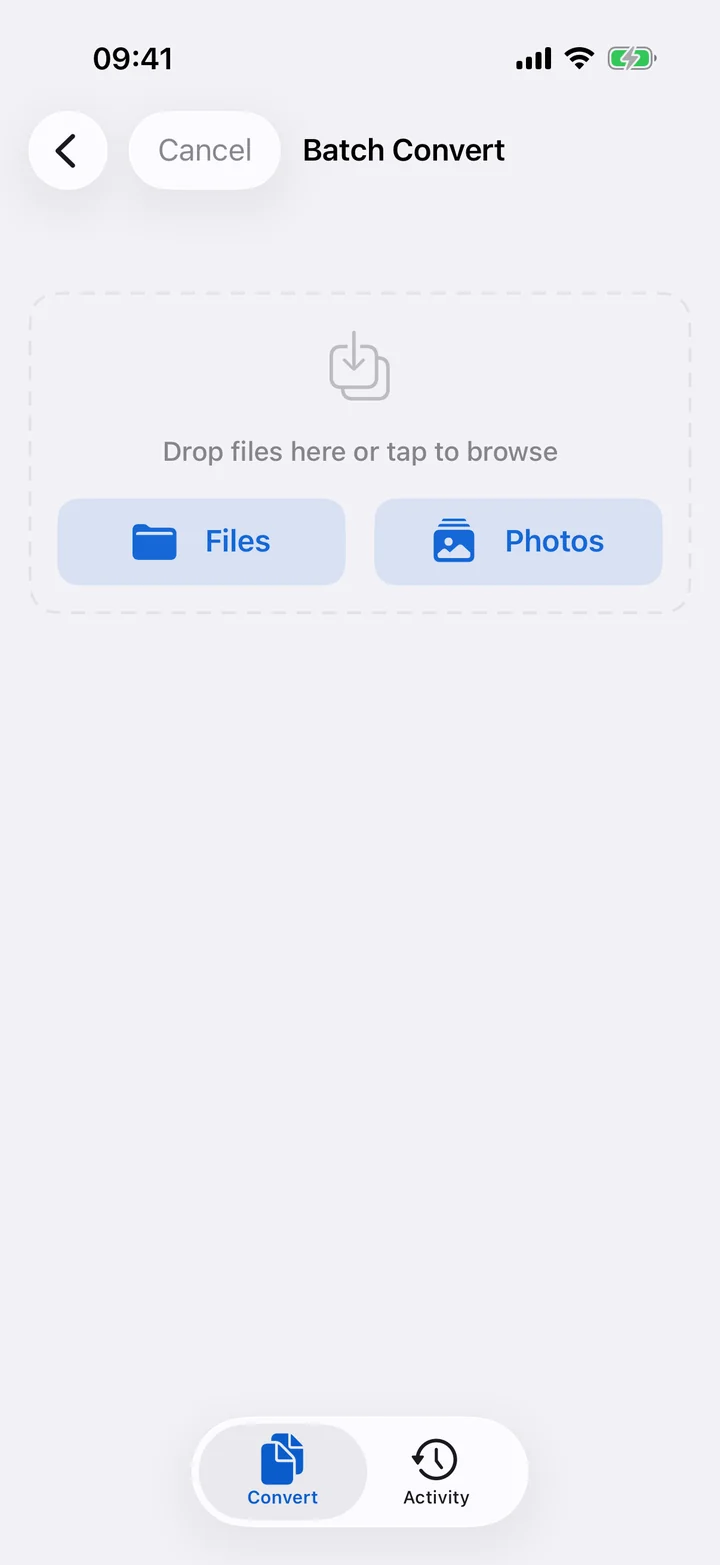
The reason people put this off is that compressing files one at a time is tedious. The fix is batch processing: select many photos and videos at once and run the job in a single pass. Filemorph compresses batches locally and shows progress on the Lock Screen with a Live Activity, so you can start it and walk away. Everything stays on your iPhone — Filemorph uses Apple's ImageIO for images and AVFoundation for video, with no upload and no account, so even your private files never leave the device.
A safe routine
Compression works on a copy, so your originals are never altered until you decide to remove them. A practical routine: compress your longest videos, then resize the photos you only need at smaller sizes, then delete the now-redundant originals once you've confirmed the copies look right. Repeat a couple of times a year and you'll rarely see that storage warning again — all without trusting your memories to a server.