Invoices exported as HTML, a web page you saved for reference, a report generated by another tool: HTML files are awkward to share, since opening one correctly depends on the recipient's browser and settings. Filemorph renders the file as a PDF instead, which opens the same way for anyone.
Filemorph renders the HTML with WebKit, Apple's browser engine, reproducing layout, text and images the way a browser would display them. JavaScript is disabled during rendering, so pages that depend on scripts to build their content may render incompletely. A document that references remote images by an absolute URL may cause WebKit to fetch them during rendering, so avoid converting HTML that points at content you would not want your device requesting.
How to convert HTML to PDF on iPhone
Pro
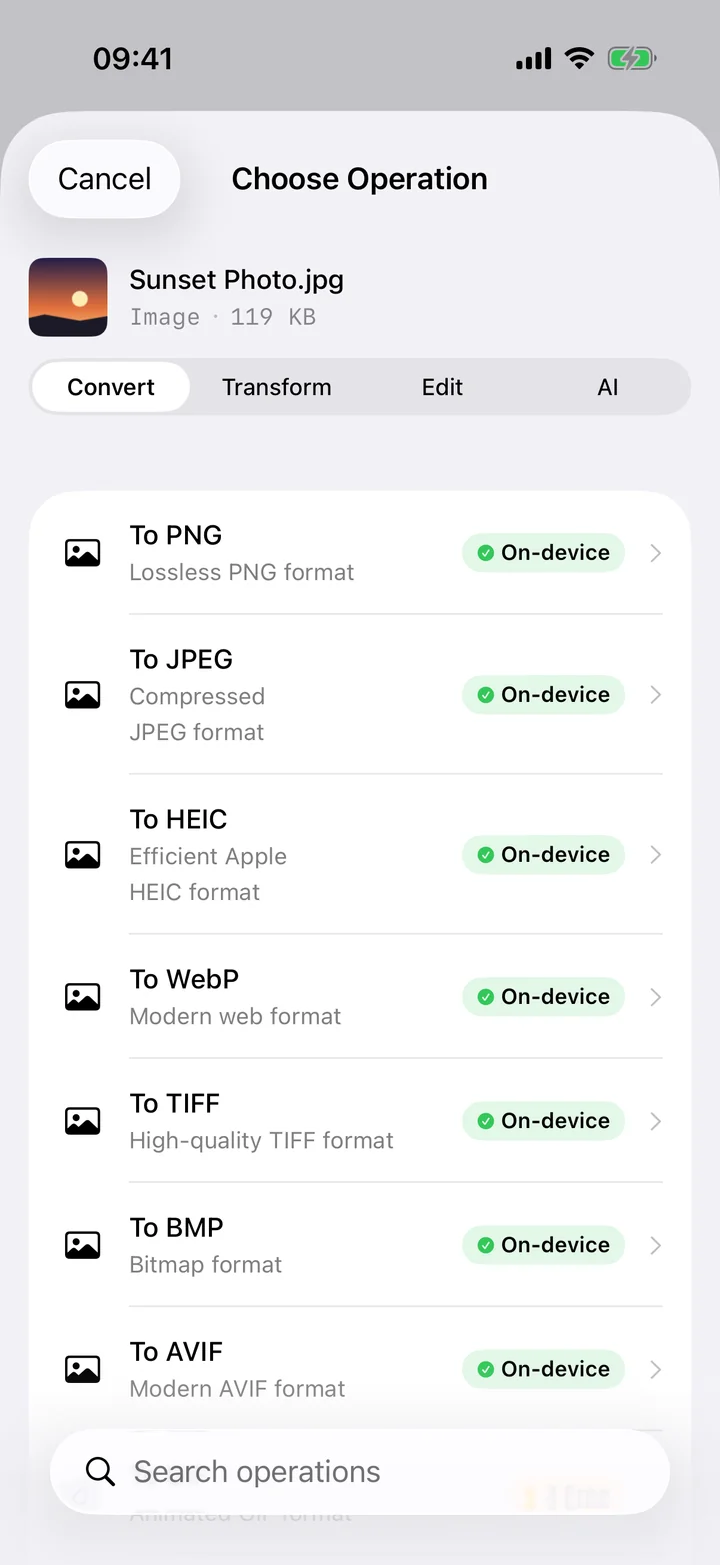
- Add your HTML file. Open Filemorph and pick the HTML file from Files or the Share sheet.
- Choose PDF. Tap Convert and choose PDF as the output format.
- Save or share. Tap Convert. The PDF saves locally, ready to send or archive.
In the app: Convert → HTML → PDF.
Why convert HTML to PDF?
PDF is a format that opens the same way on any device, unlike an HTML file that depends on a browser to render correctly. Converting an invoice, saved page or report to PDF makes it something you can archive, print or send without worrying how the recipient's browser handles it.
Is it private?
Yes. Unlike web converters that upload your files to a server, Filemorph converts every file locally using Apple's frameworks. Nothing leaves your device, and it works with no internet connection. This operation is part of Filemorph Pro ($29.99/year, 7-day free trial on monthly and annual plans).