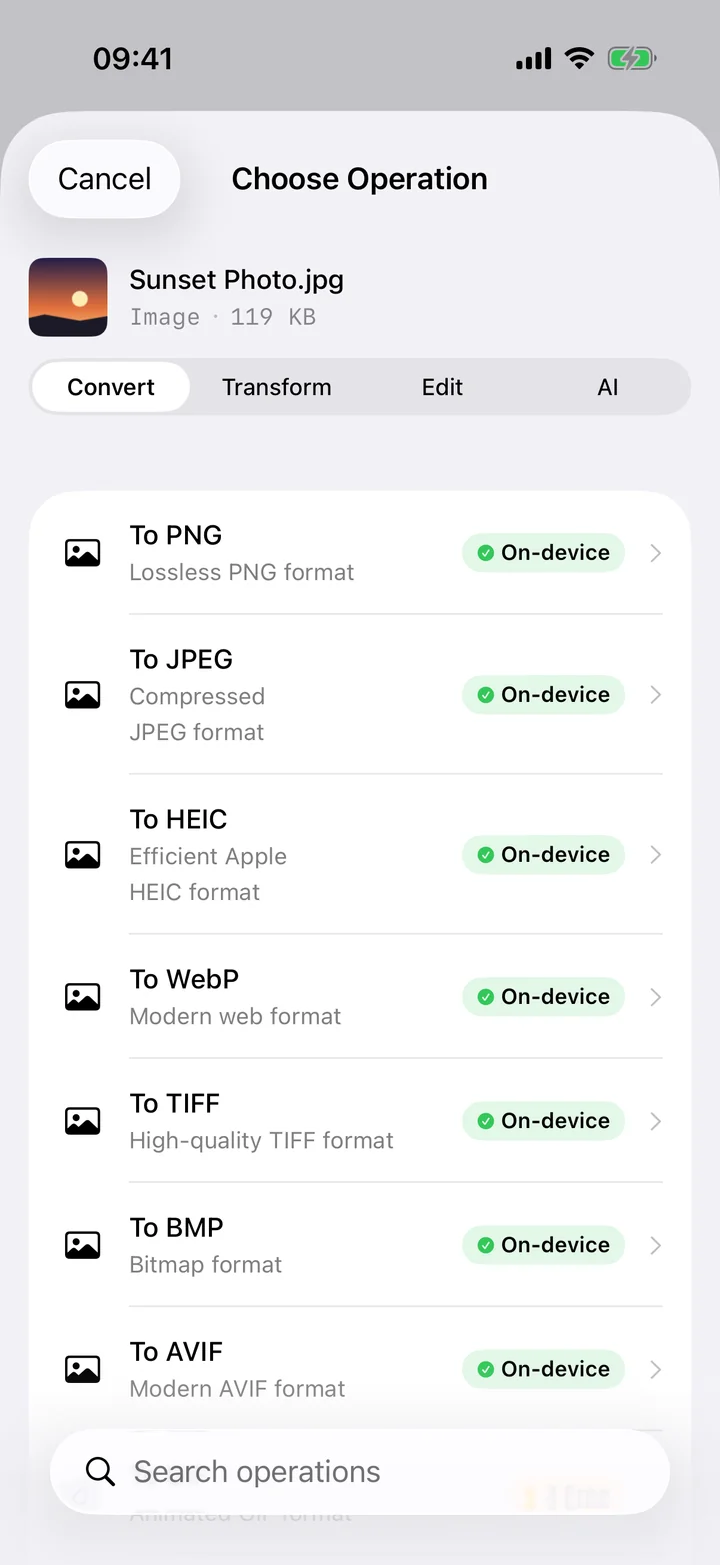
If you record a voice memo, save an audiobook clip, or pull audio out of an iPhone app, you usually end up with an M4A file (AAC inside an MPEG-4 container). It's an efficient, good-sounding format — but it's not universal. Older car stereos, some MP3 players, certain podcast and transcription tools, and a surprising number of upload forms still expect a plain MP3. Rather than fight the device or service on the other end, it's far simpler to convert the file once and never think about it again.
Filemorph re-encodes your M4A as an MP3 using Apple's AVFoundation audio pipeline. You choose the output bitrate — higher for music you care about, lower for spoken-word recordings where file size matters more than fidelity — and the conversion runs entirely on your iPhone. There's no upload step, so even a long recording converts quickly and works with no signal at all. The finished MP3 saves straight to Files or the Share sheet, ready to drop into whatever player or service needed it.
How to convert M4A to MP3 on iPhone
Pro
- Add the file. Open Filemorph and add the M4A file from Files or the Share sheet.
- Choose MP3. Choose MP3 as the output and pick a bitrate for the quality you want.
- Convert and save. Tap Convert and save or share the MP3.
Why convert M4A to MP3?
MP3 is the universal audio format — it plays on every device, car stereo and app. Converting from M4A guarantees your audio works everywhere, including older hardware.
Is it private?
Yes. Filemorph converts audio locally with Apple's AVFoundation framework. Nothing is uploaded to a server, and the whole process works with no internet connection.