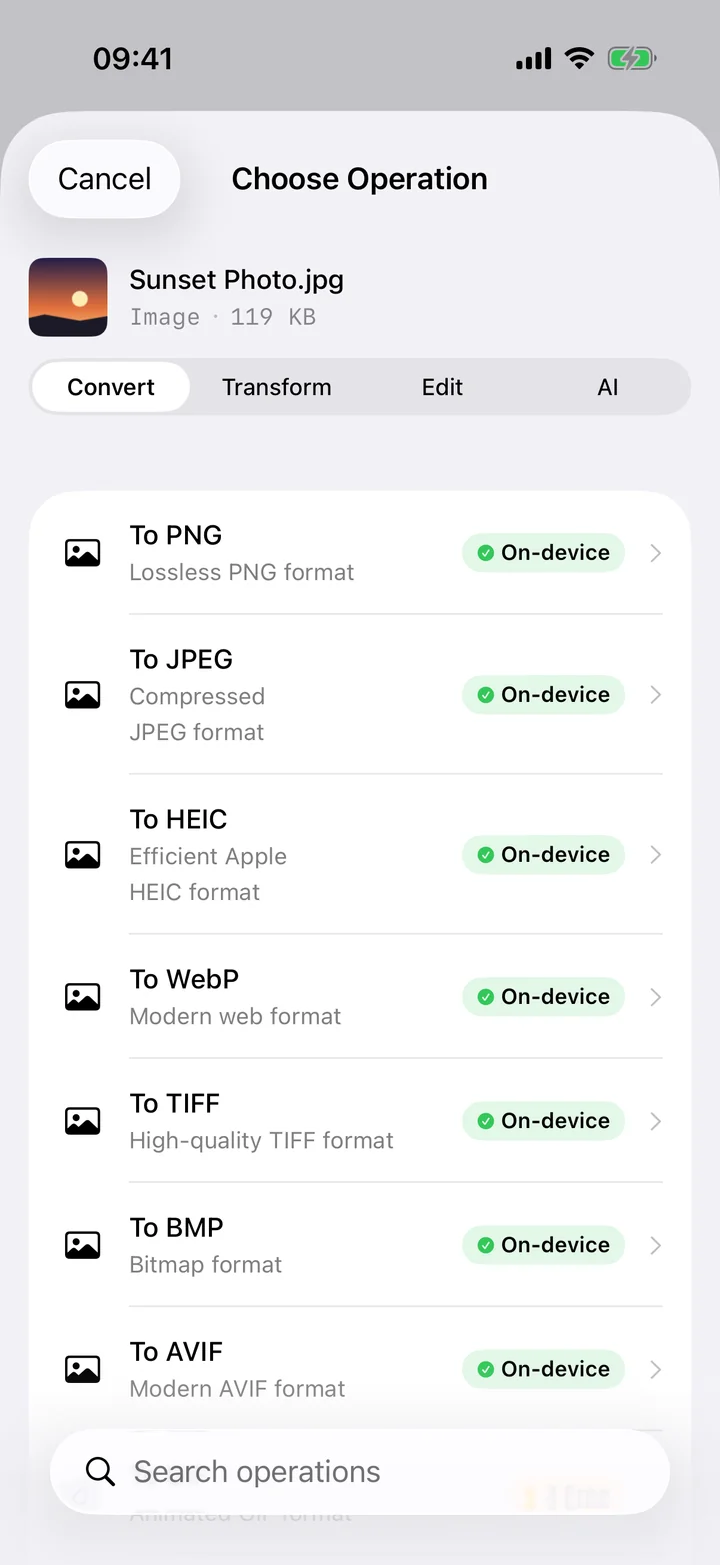
Most video editors treat a trim like any other edit: decode the whole file, apply the change, encode it back out. That is fine for color grading, but it is a lot of work for cutting ten seconds off the front of a screen recording. Filemorph pulls a video into the timeline and lets you drag the start and end handles directly, right on the device that shot the video.
Under the hood, Filemorph uses AVFoundation's passthrough export whenever the source format allows it, which copies the video and audio data for the section you keep instead of decoding and re-encoding it. That is why a two-minute trim off a ten-minute video finishes almost immediately, and why the part you keep looks identical to the original, frame for frame.
How to trim a video on iPhone
Pro
- Add your video. Open Filemorph and pick the video from Photos, Files or the Share sheet.
- Set the start and end. Tap Trim and drag the handles to the points where the clip should start and stop.
- Save or share. Tap Convert. The trimmed video saves locally — share it, save to Files or send it right away.
In the app: Trim.
Why trim a video on-device?
A video trimmed on a server has already made a round trip before you see the result, and a phone's upload speed is usually the slowest part of that trip. Trimming locally skips the wait entirely, and it means a video you would rather not send anywhere — a recording of your kid's recital, a screen capture with account details visible before the cut — never has to leave your phone just to lose ten seconds.
Is it private?
Yes. Unlike web converters that upload your files to a server, Filemorph converts every file locally using Apple's frameworks. Nothing leaves your device, and it works with no internet connection. This operation is part of Filemorph Pro ($29.99/year, 7-day free trial on monthly and annual plans).