Invoices, bank statements, price lists and reports often carry their real data inside a table, but a PDF table is just ink on a page — you cannot sort it, filter it or run a formula against it. Filemorph detects each table in the PDF and writes its rows and columns into an XLSX workbook.
Filemorph uses Apple's Vision framework, specifically its document table recognition on iOS 26 and later, to find table boundaries and cell contents directly from the page image, which means it works on scanned PDFs, not only ones with a text layer. Each detected table becomes its own sheet in the output workbook, so a multi-table report opens as a multi-sheet file.
How to convert PDF to Excel on iPhone
Pro · iOS 26+
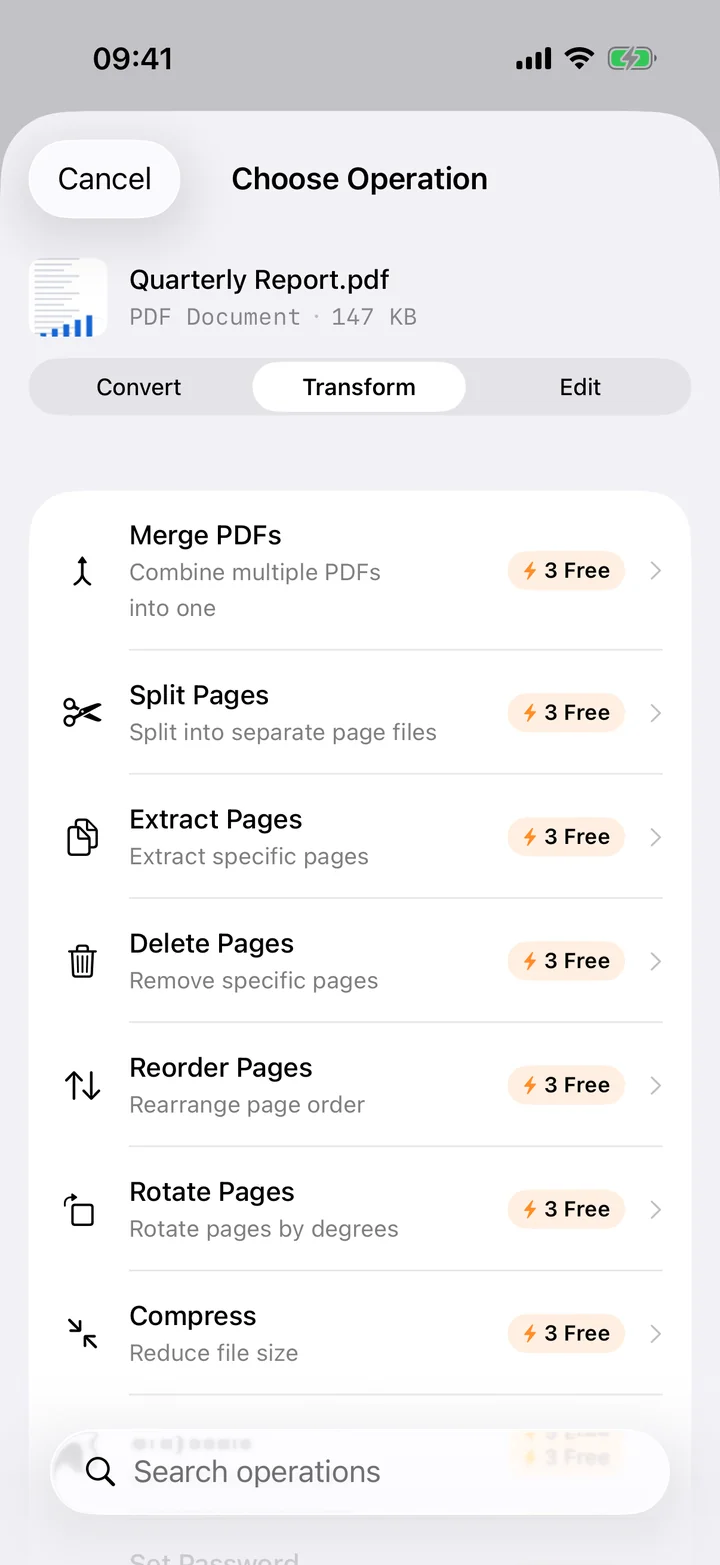
- Add your PDF. Open Filemorph and pick the PDF from Files, Photos or the Share sheet.
- Choose Excel. Tap Convert and choose Excel (XLSX) as the output format.
- Save or share. Tap Convert. The spreadsheet is saved locally, one sheet per detected table — open it in Excel, Numbers or Google Sheets.
In the app: Convert → To Excel.
Why convert PDF to Excel?
A spreadsheet lets you sort, filter, sum and chart data that a PDF only lets you read. Pulling a table out of a bank statement, invoice or report into Excel turns a document you can look at into one you can actually work with.
Is it private?
Yes. Unlike web converters that upload your files to a server, Filemorph converts every file locally using Apple's frameworks. Nothing leaves your device, and it works with no internet connection. This operation is part of Filemorph Pro ($29.99/year, 7-day free trial on monthly and annual plans). Requires iOS 26+.