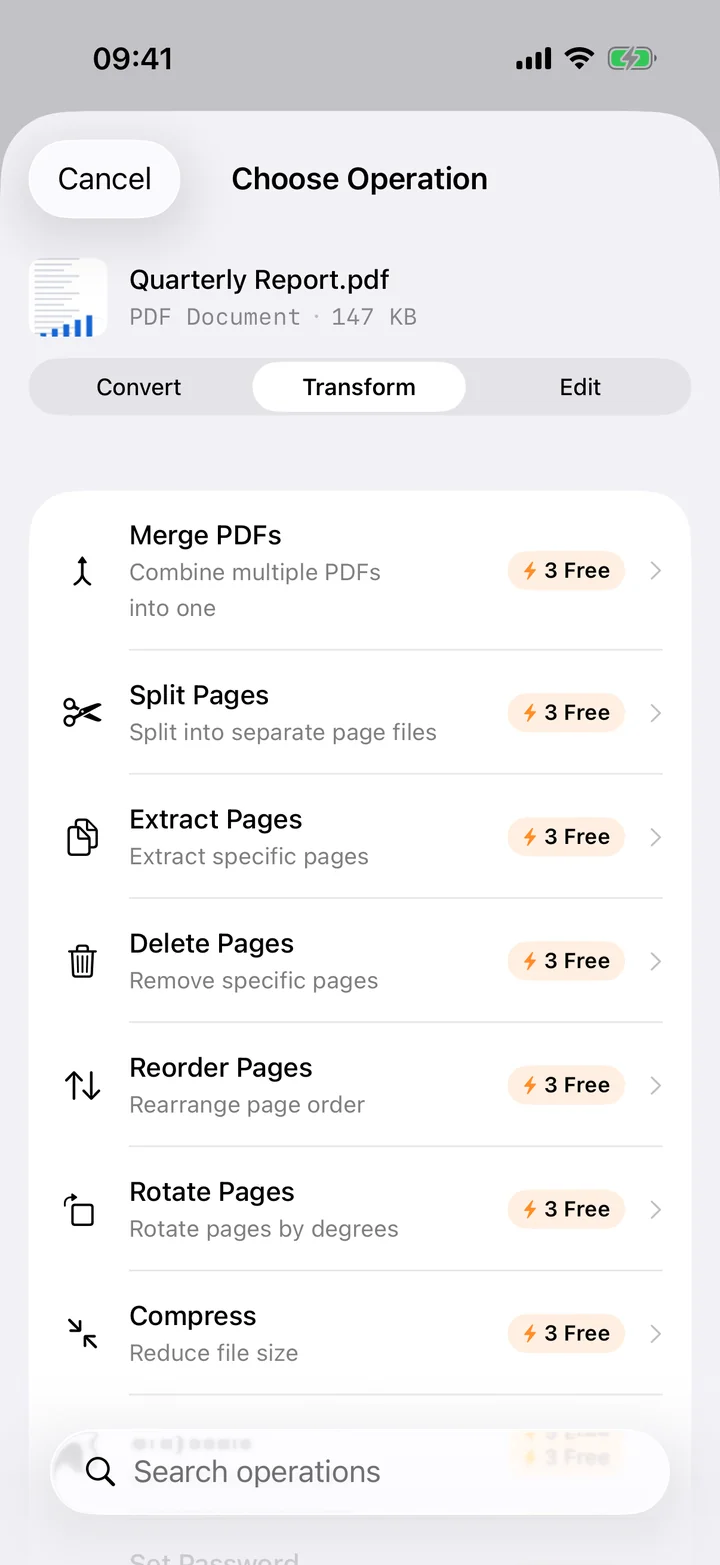
Quoting a paragraph from a report, pulling a phone number out of a scanned form, or moving a PDF's content into a notes app: none of it needs the PDF's formatting, just the text. Filemorph reads the PDF locally and extracts every line into a plain text file.
Filemorph uses Apple's PDFKit to read the text layer of the PDF directly, in the order it appears on the page. This works for any PDF that already has selectable text — reports, exports, contracts, ebooks. A scanned PDF made from a photo or a fax has no text layer to extract, so run OCR Overlay first to add one, then convert to text.
How to convert PDF to text on iPhone
Free
- Add your PDF. Open Filemorph and pick the PDF from Files, Photos or the Share sheet.
- Choose Text. Tap Convert and choose Text as the output format.
- Save or share. Tap Convert. The text file is saved locally — copy it, share it or open it in Notes.
In the app: Convert → To Text.
Why convert PDF to text?
Plain text pastes cleanly into notes apps, messages and search boxes without carrying over a PDF's fonts, columns or page breaks. It is also far smaller than the original PDF, and every word in it is searchable the moment it lands on your device.
Is it private?
Yes. Unlike web converters that upload your files to a server, Filemorph converts every file locally using Apple's frameworks. Nothing leaves your device, and it works with no internet connection. This conversion is in the free tier.