A PowerPoint file depends on fonts, animations and a specific version of the app to look right, none of which travel reliably over email. A PDF removes that dependency: every slide becomes a page that looks the same on any device, with nothing to install.
Filemorph renders each slide with WebKit, Apple's browser engine, reproducing text, images and basic layout closely. Animations and transitions do not carry over, since a PDF page is static, and slides with heavy custom fonts or complex effects may differ slightly from how they look in PowerPoint or Keynote.
How to convert PowerPoint to PDF on iPhone
Pro
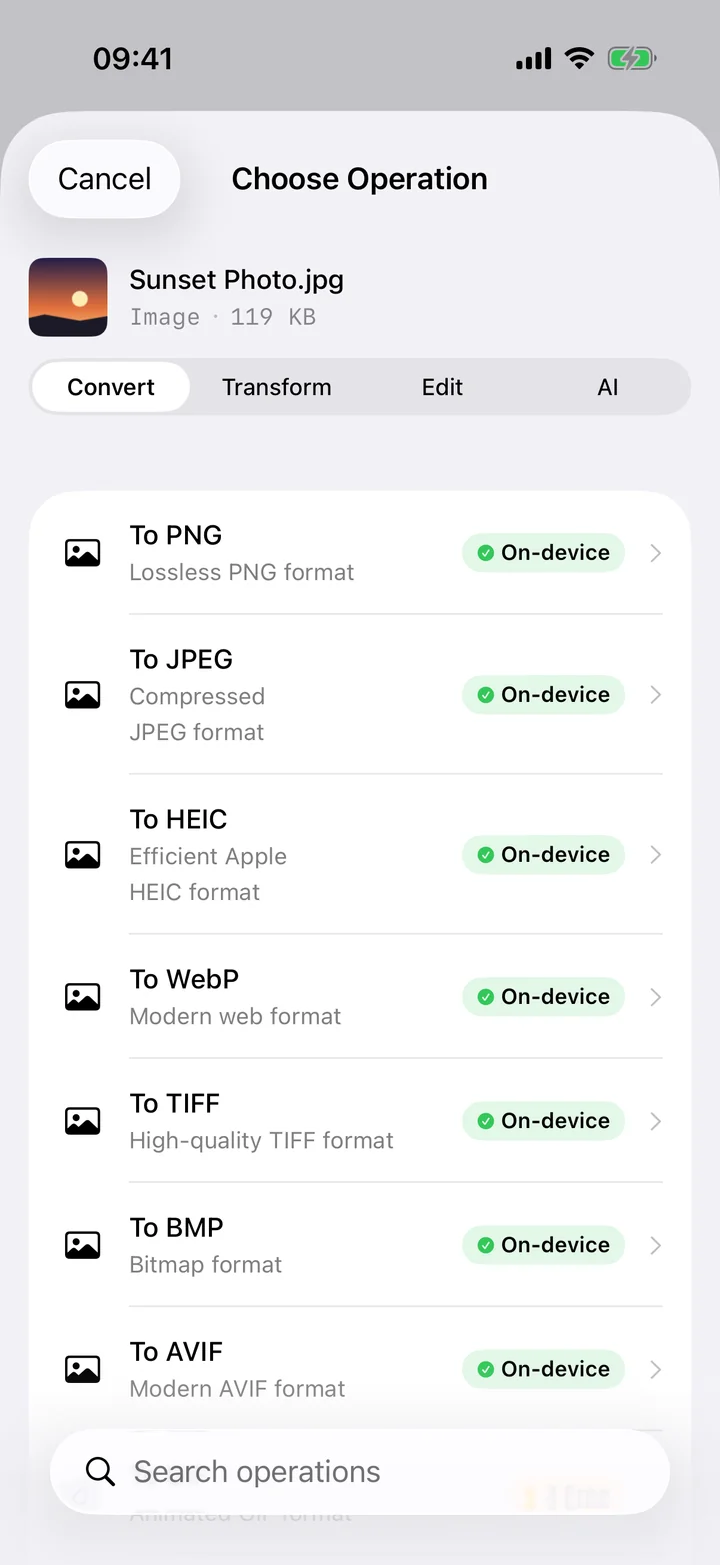
- Add your presentation. Open Filemorph and pick the PPT or PPTX file from Files or the Share sheet.
- Choose PDF. Tap Convert and choose PDF as the output format.
- Save or share. Tap Convert. The PDF saves locally, one page per slide, in the original order.
In the app: Convert → To PDF.
Why convert PowerPoint to PDF?
A PDF version of a deck opens on any device without PowerPoint installed, and it locks the layout so nobody can accidentally reorder or edit a slide before a meeting. It is also a smaller, easier file to email or print as handouts.
Is it private?
Yes. Unlike web converters that upload your files to a server, Filemorph converts every file locally using Apple's frameworks. Nothing leaves your device, and it works with no internet connection. This operation is part of Filemorph Pro ($29.99/year, 7-day free trial on monthly and annual plans).