HEIC — High Efficiency Image Container — is the format your iPhone has used by default since iOS 11. It packs the same picture into roughly half the space of a JPEG, which is great for your camera roll and terrible for sharing. Email a HEIC to a colleague on Windows, upload one to an older web form, or drop it into an app that predates the format, and it simply won't open. A HEIC converter exists to undo that friction, and the best one does it without making a trade you'll regret later.
The catch is that "convert HEIC online free" usually means handing your photo to a website that uploads it, processes it on a server, and may keep a copy. For a snapshot of your lunch, fine — for an ID photo, a screenshot of a private message or a picture of your kids, that's not a price worth paying for a format swap. So the buying decision really comes down to where the conversion happens and what formats you can reach.
What to look for in a HEIC converter
On-device, no upload
This is the single most important factor. iOS already ships the decoder needed to read HEIC, so a well-built app never needs to send your photo to a server at all. On-device conversion keeps your image private, runs faster because there's no upload-then-download round trip, and works with no signal — on a flight, in the field, anywhere.
The right output formats
"Convert HEIC" isn't one job. Sometimes you want a universally compatible JPG for sharing; sometimes you need a lossless PNG with transparency for design work; sometimes the real goal is a PDF you can email or print. A converter that only outputs JPG forces you into workarounds. Look for one that covers all three from the same photo.
Quality control and batches
HEIC photos are often high-resolution, so you want to keep quality where it matters and shrink it where it doesn't — a quality slider for JPG, a true lossless path via PNG. And because you rarely have just one photo, batch conversion turns a tedious one-at-a-time chore into a single tap.
A genuinely free tier
Converting HEIC is such a routine task that it shouldn't sit behind a paywall. The best apps make the everyday HEIC conversions free and reserve payment for heavier or specialist work, so you're not paying a subscription just to open your own photos on a different device.
Why Filemorph
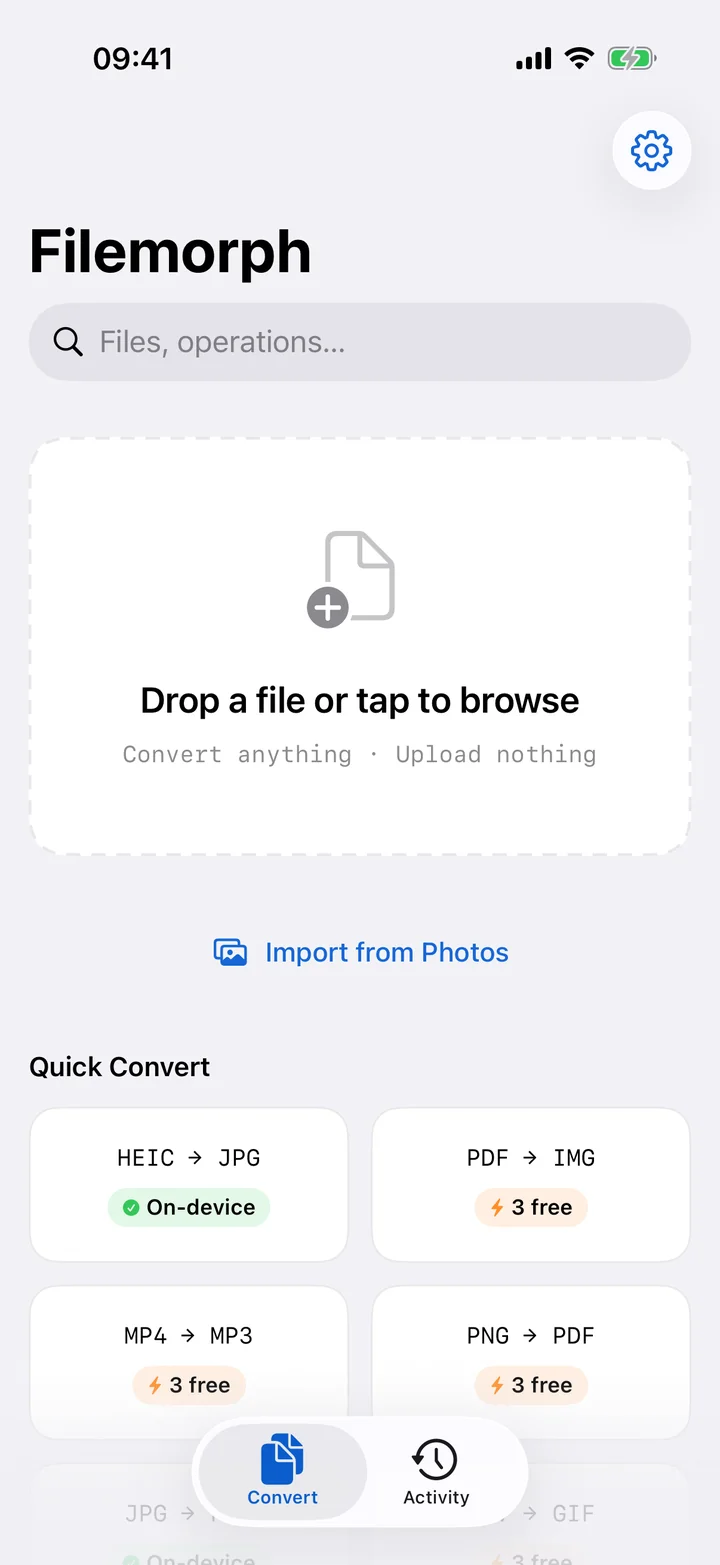
Filemorph reads your HEIC with Apple's own ImageIO framework — the same decoder Photos uses — and re-encodes it entirely on your iPhone, iPad or Mac. Nothing is uploaded, there's no account, and it works offline. From a single source photo you can produce three different outputs: HEIC to JPG for maximum compatibility, HEIC to PNG for a lossless copy with transparency, and HEIC to PDF to turn photos into a document. You can also chain into PNG to JPG or explore the rest of the image toolkit for resize, crop and compress.
The HEIC conversions are free, including batches of up to three photos at a time, with a quality slider for JPG and a true lossless route through PNG. Progress for a batch shows on the Lock Screen via a Live Activity, so you can start a job and walk away. For extra privacy you can strip EXIF and GPS metadata in the same pass, and Filemorph's AES-GCM encryption with secure delete lets you lock or wipe the original after converting. It's a HEIC converter that respects your photos as much as your time.