If you've ever tried to email an iPhone photo to a friend on Windows, or upload one to a website that rejects it, you've run into HEIC. Apple adopted HEIC (High Efficiency Image Container) as the default camera format in iOS 11 because it stores the same picture in roughly half the space of a JPEG. The trade-off is compatibility: plenty of PCs, older Android phones, content-management systems and web forms still don't recognise the format. Converting to JPG solves that instantly, and Filemorph does it without ever sending your photo off the device.
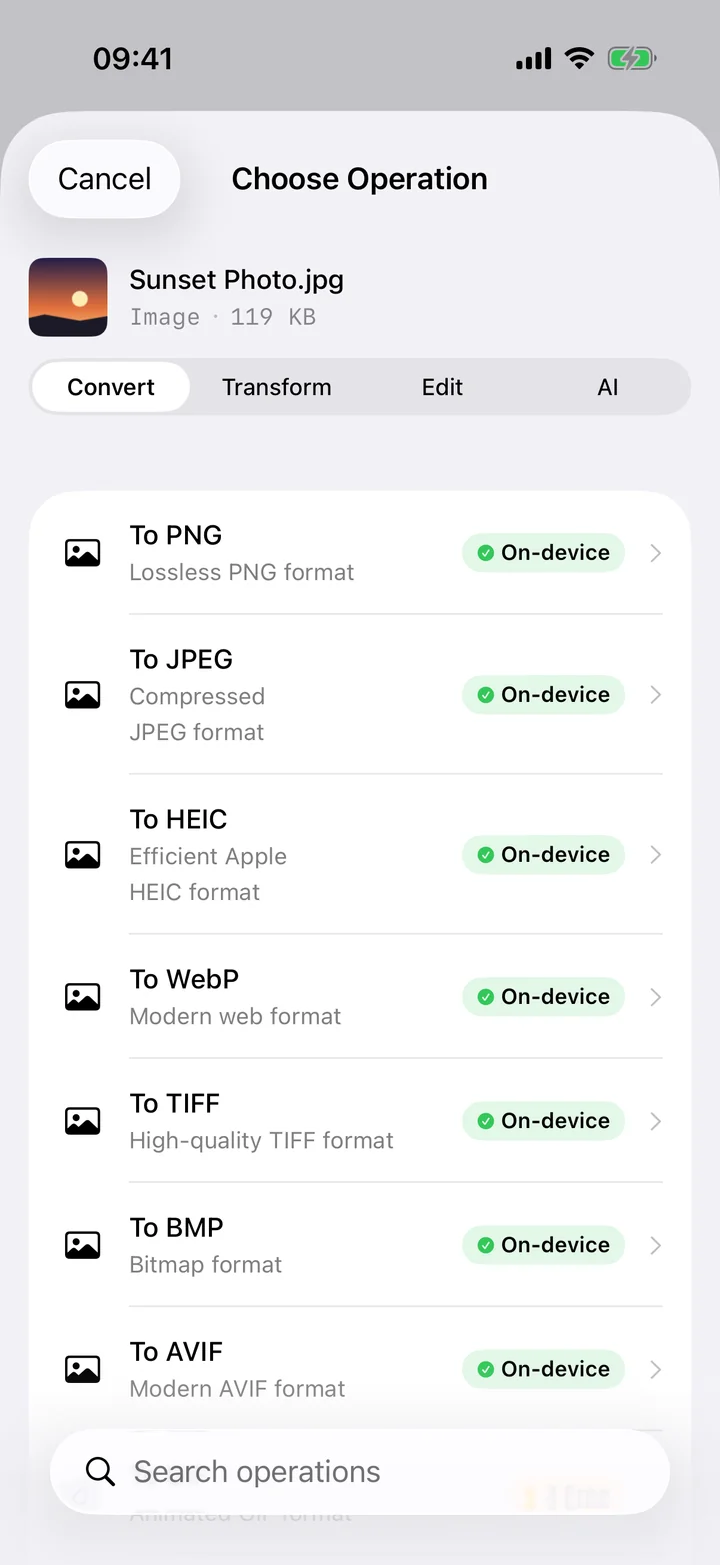
Filemorph reads the original HEIC with Apple's own ImageIO framework — the same decoder the Photos app uses — and re-encodes it as a standard JPEG you can open anywhere. You can convert a single photo or select a whole batch, choose the output quality, and the result lands straight back in Files or the Share sheet. Because everything runs locally, conversion is fast even on older iPhones and there's no waiting for an upload or download.
How to convert HEIC to JPG on iPhone
Free
- Add your photo. Open Filemorph and pick the HEIC photo from Photos, Files, or the Share sheet.
- Choose JPG. Tap Convert and choose JPEG as the output format. Optionally set the quality.
- Save or share. Tap Convert. The JPG is saved locally — share it, save to Files, or AirDrop it.
Why convert HEIC to JPG?
JPG (JPEG) is the most universally compatible image format — every device, browser and website reads it. Converting frees your HEIC photos to be emailed, uploaded to sites that reject HEIC, or opened on Windows. Filemorph keeps full image quality and lets you batch-convert many photos at once.
Is it private?
Yes. Unlike web converters that upload your photos to a server, Filemorph converts every file locally using Apple's ImageIO framework. Nothing leaves your iPhone, and it works with no internet connection.