Screenshots that were saved as JPG, logos pulled from an email, a signature you photographed — sooner or later a website or app demands PNG. PNG is lossless and supports transparency, so it is the format editors, print shops and upload forms ask for when edges matter. Converting on your phone means the file is ready before you get to a computer.
Filemorph decodes the JPG with Apple's ImageIO framework and re-encodes it as PNG. Nothing is upscaled or "enhanced" unless you ask: the pixels are preserved exactly, and any JPG artifacts that were already there stay there — PNG stops further loss, it cannot undo old compression. You can convert one image or a batch of three at once on the free tier.
How to convert JPG to PNG on iPhone
Free
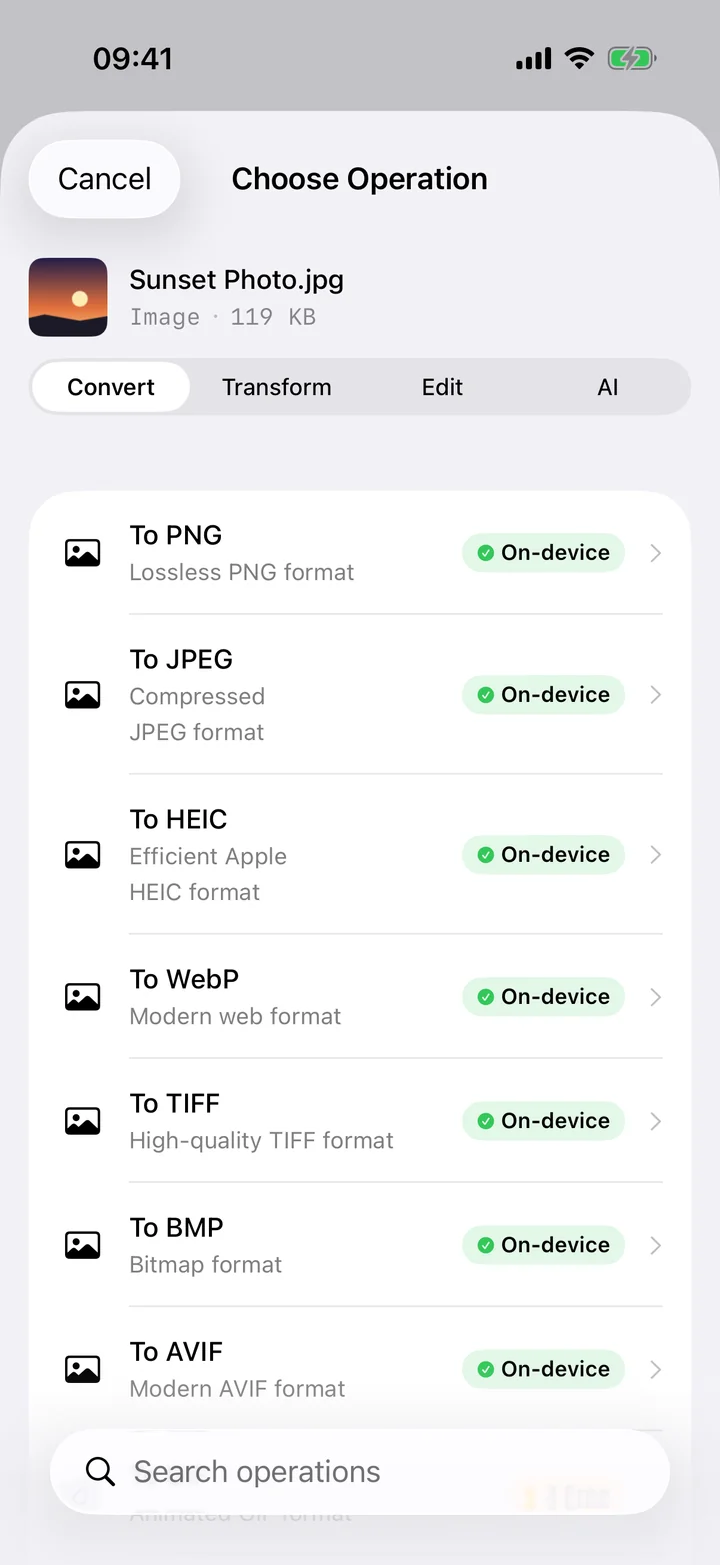
- Add your image. Open Filemorph and pick the JPG from Photos, Files or the Share sheet.
- Choose PNG. Tap Convert and choose PNG as the output format.
- Save or share. Tap Convert. The PNG is saved locally — share it, save to Files or AirDrop it.
In the app: Convert → To PNG.
Why convert JPG to PNG?
PNG is lossless and supports transparency. Use it for screenshots, UI assets, logos, diagrams and anything you will edit again; keep JPG for photos where file size matters more. Converting to PNG also sidesteps upload forms that reject JPG.
Is it private?
Yes. Unlike web converters that upload your files to a server, Filemorph converts every file locally using Apple's frameworks. Nothing leaves your device, and it works with no internet connection. This conversion is in the free tier.