Every recording in Apple's Voice Memos app is stored as an M4A file. That is fine for listening back, but many of the places a recording goes next expect WAV: audio editors and DAWs, podcast production tools, some transcription services, and older software that never learned to read M4A. Converting the memo first avoids a rejected upload or an import error.
The conversion runs on your device: Filemorph decodes the memo with Apple's AVFoundation and writes a 16-bit WAV at the recording's own sample rate and channel count. A voice memo is often a private recording, an interview, a meeting, a note to yourself, and it never leaves your iPhone during the conversion. Decoding does not add quality the memo did not have, so the WAV sounds the same as the original, in a format any tool accepts.
How to convert a Voice Memo to WAV on iPhone
Pro
- Share the memo to Filemorph. In Voice Memos, select the recording, tap the More button (three dots), choose Share and pick Filemorph from the share sheet. You can also save the memo to Files first and add it from there.
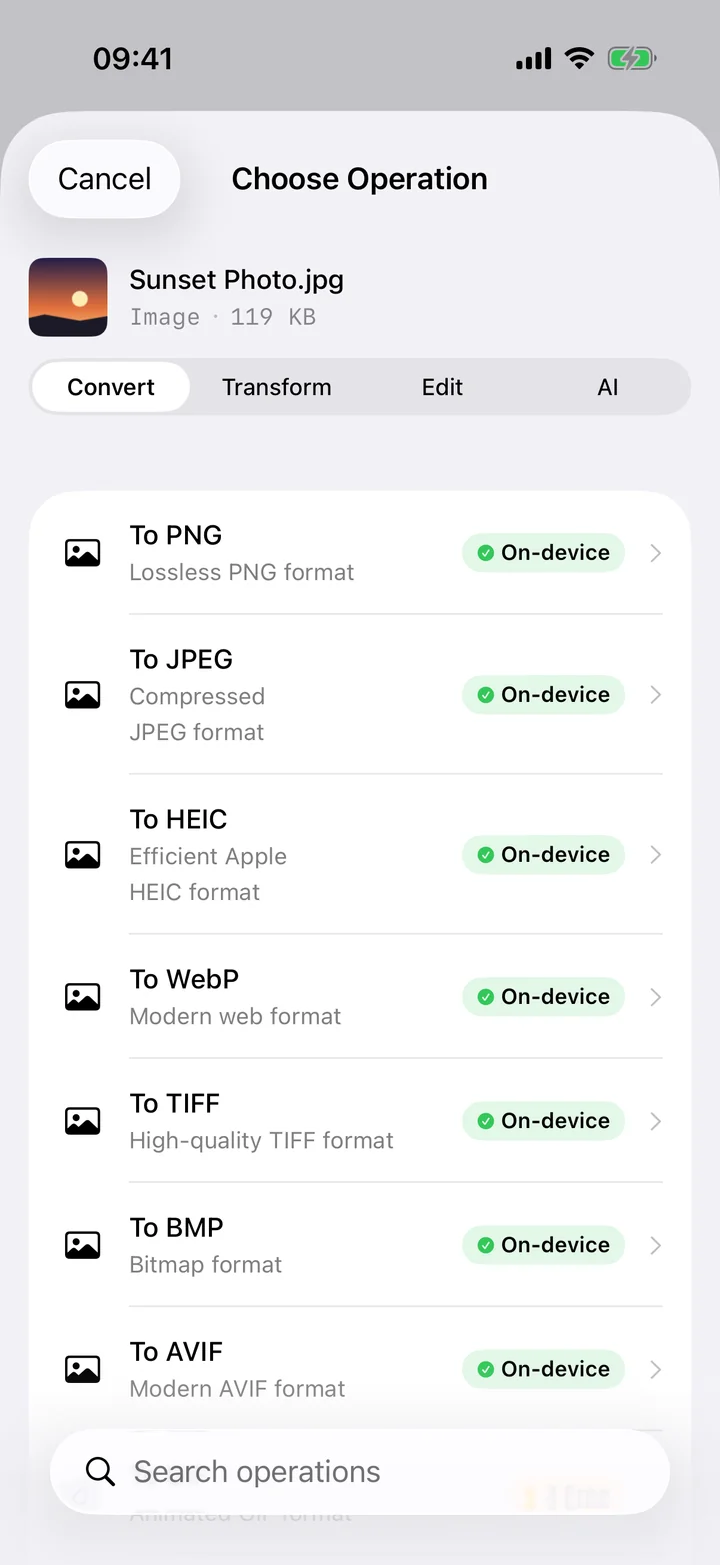
- Choose WAV. Tap Transcode and set Output Format to WAV. If you only need a smaller file, M4A and MP3 are in the same picker.
- Save or share. Tap Convert. The WAV saves locally, ready to send, import into an editor or upload to a service that requires it.
In the app: Transcode (Output Format: WAV).
Why convert a voice memo to WAV?
Because the tool at the other end asked for it. WAV is the safe format for editing, transcription and archiving workflows, and converting the memo on the phone is faster than sending it to a desktop and running a converter there. Doing it on-device also keeps a private recording private.
Is it private?
Yes. Unlike web converters that upload your files to a server, Filemorph converts every file locally using Apple's frameworks. Nothing leaves your device, and it works with no internet connection. This operation is part of Filemorph Pro ($29.99/year, 7-day free trial on monthly and annual plans).