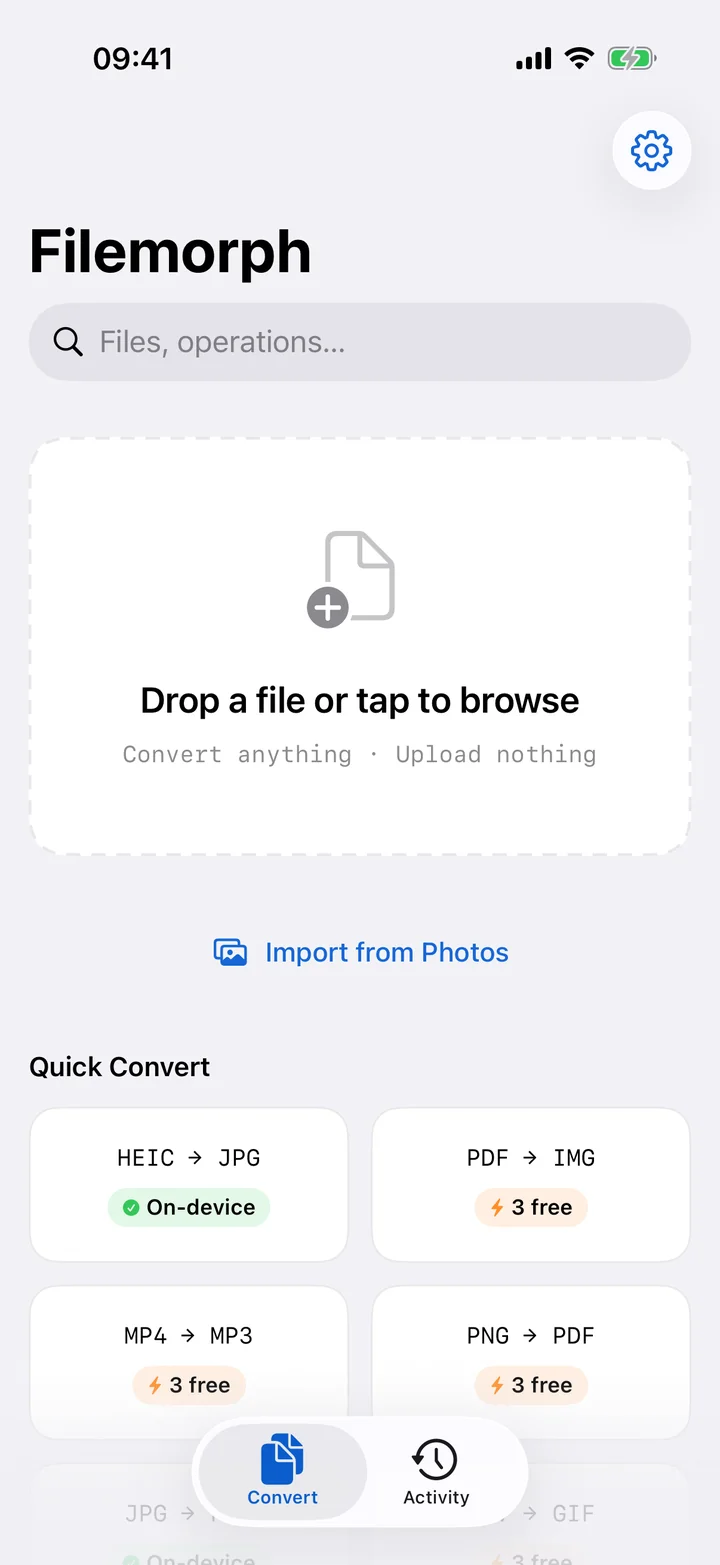
If you searched for the best file converter app for iPhone, you probably hit the same wall everyone does: a Files app that opens almost everything but converts almost nothing, and a flood of free web tools that ask you to upload your photos and documents to a stranger's server. The honest answer is that the best converter isn't the one with the longest feature list on its screenshot — it's the one that does the conversions you actually need without making your files leave the phone. That single test eliminates most of the field.
This guide walks through the four things that separate a converter you'll keep from one you'll delete after a week, then explains exactly where Filemorph fits — including the parts that are free and the parts that aren't, so there are no surprises.
What to look for in an iPhone converter
1. On-device processing (privacy)
This is the big one. A huge share of "free online converters" work by uploading your file, processing it on their servers, and handing back a download link. For a meme that's fine; for a passport scan, a medical PDF or a private photo it's a real risk — you've handed a copy to a third party with terms you didn't read. A good iPhone converter does the work locally so nothing is ever transmitted. As a side benefit, on-device conversion works on a plane, on the subway, or anywhere with no signal.
2. Format coverage that matches your life
Most people don't need 500 obscure formats; they need the dozen that come up constantly — HEIC photos that won't open on Windows, MOV clips that need to be MP4, voice memos that have to become MP3, and a pile of images that should be a single PDF. The right app covers those common pairs cleanly and adds depth (RAW, WebP, SVG, FLAC, ICO) for when you do need it. Breadth without the everyday basics is a vanity number.
3. A free tier you can actually use
"Free" in the App Store often means a three-conversion trial before a paywall. A genuinely useful free tier lets you handle routine tasks indefinitely and reserves payment for heavier or specialist work. Read the fine print before you commit — know which operations are free and which are Pro, rather than discovering the wall mid-task.
4. Automation and Shortcuts
The best tool is one you stop thinking about. If a converter exposes App Intents, you can build a Shortcut — convert every screenshot to JPG, strip metadata before sharing, compress a video on a Back Tap — and run it without opening the app at all. That's the difference between a utility you fight and one that quietly works in the background.
Why Filemorph
Filemorph was built around exactly that checklist. Every one of its 300+ operations runs entirely on your device using Apple's own frameworks — ImageIO for images, AVFoundation for audio and video, PDFKit for documents, Vision for AI features. Nothing is uploaded, there's no account to create, and every conversion works offline — the AI-enhancement models are the one thing that download from our servers, once, on first use, and that download never includes your files. It runs natively on iPhone, iPad and Mac.
On coverage, it handles the everyday pairs and the long tail: HEIC to JPG and PNG to JPG for compatibility, MOV to MP4 for sharing video, M4A to MP3 for audio, and JPG to PDF when you need to turn photos into a document. The full image toolkit adds resize, crop, compress and more.
The free tier is real, not a teaser. Image format conversions, single image-to-PDF, resize, crop and compress, and batches of up to three files are all free and work offline. Video, audio, PDF tools and the AI features are Pro — that's the honest split. For anyone who wants stronger privacy, Filemorph also includes AES-GCM encryption with secure delete, so you can lock a file or wipe the original after converting. And because it ships 15 Shortcuts (App Intents) actions, the conversions you repeat can be automated entirely.