If you imported photos from a DSLR, a downloaded gallery or an old phone, they likely arrived as JPG — and JPG takes up close to twice the storage of HEIC for a similar-looking image. Converting a batch to HEIC before it fills up your camera roll is a quick way to claw back storage without deleting anything.
Filemorph re-encodes the JPG using Apple's HEIF encoder, the same one the Camera app writes to natively. Expect roughly 40 to 50% smaller files at a quality level that is hard to tell apart from the JPG original, since HEIC uses a more modern, efficient codec than JPG's decades-old one.
How to convert JPG to HEIC on iPhone
Free
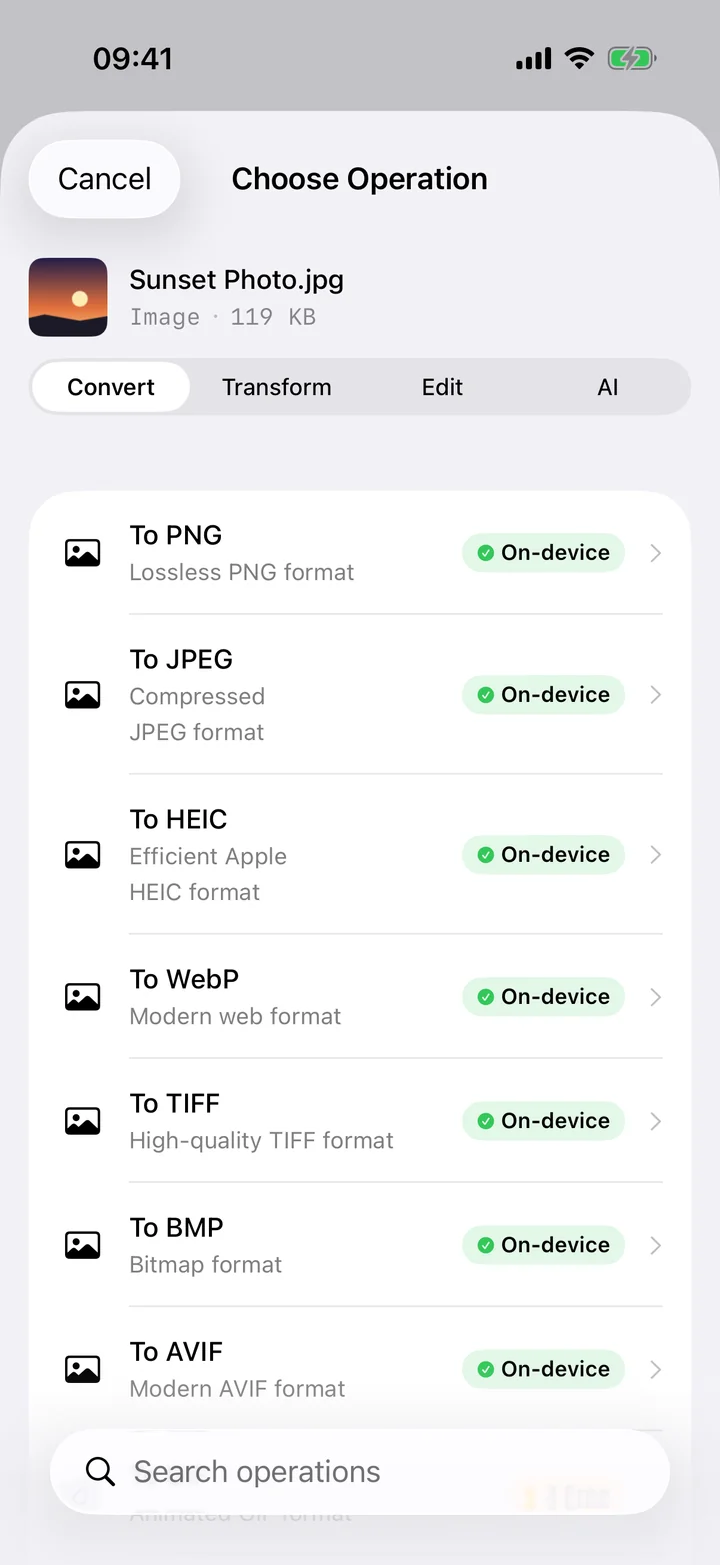
- Add your image. Open Filemorph and pick the JPG from Photos, Files or the Share sheet.
- Choose To HEIC. Tap Convert and choose To HEIC as the output format.
- Save or share. Tap Convert. The HEIC is saved locally — share it, save to Files or AirDrop it.
In the app: Convert → To HEIC.
Why convert JPG to HEIC?
HEIC stores a photo at a similar visual quality to JPG in roughly half the file size, which adds up fast across a camera roll of thousands of photos. Use it to reclaim iPhone storage; keep JPG for sharing with people or software that might not recognize HEIC yet.
Is it private?
Yes. Unlike web converters that upload your files to a server, Filemorph converts every file locally using Apple's frameworks. Nothing leaves your device, and it works with no internet connection. This conversion is in the free tier.