Old scanned contracts, a stack of receipts run through a scanner app, a PDF made from photographed pages: none of it is searchable until something reads the text on the page and adds it back into the file. Filemorph does that pass locally, without sending a single page anywhere.
Filemorph runs Apple's Vision framework over each page image to recognize the text, then overlays an invisible, selectable text layer aligned to what is on the page — the visual scan looks exactly the same, but search, Spotlight and copy-and-paste now work on it. Recognition quality depends on scan quality and the language of the text; available languages depend on what your iOS version supports.
How to make a scanned PDF searchable on iPhone
Pro
- Add your scanned PDF. Open Filemorph and pick the scanned PDF from Files, Photos or the Share sheet.
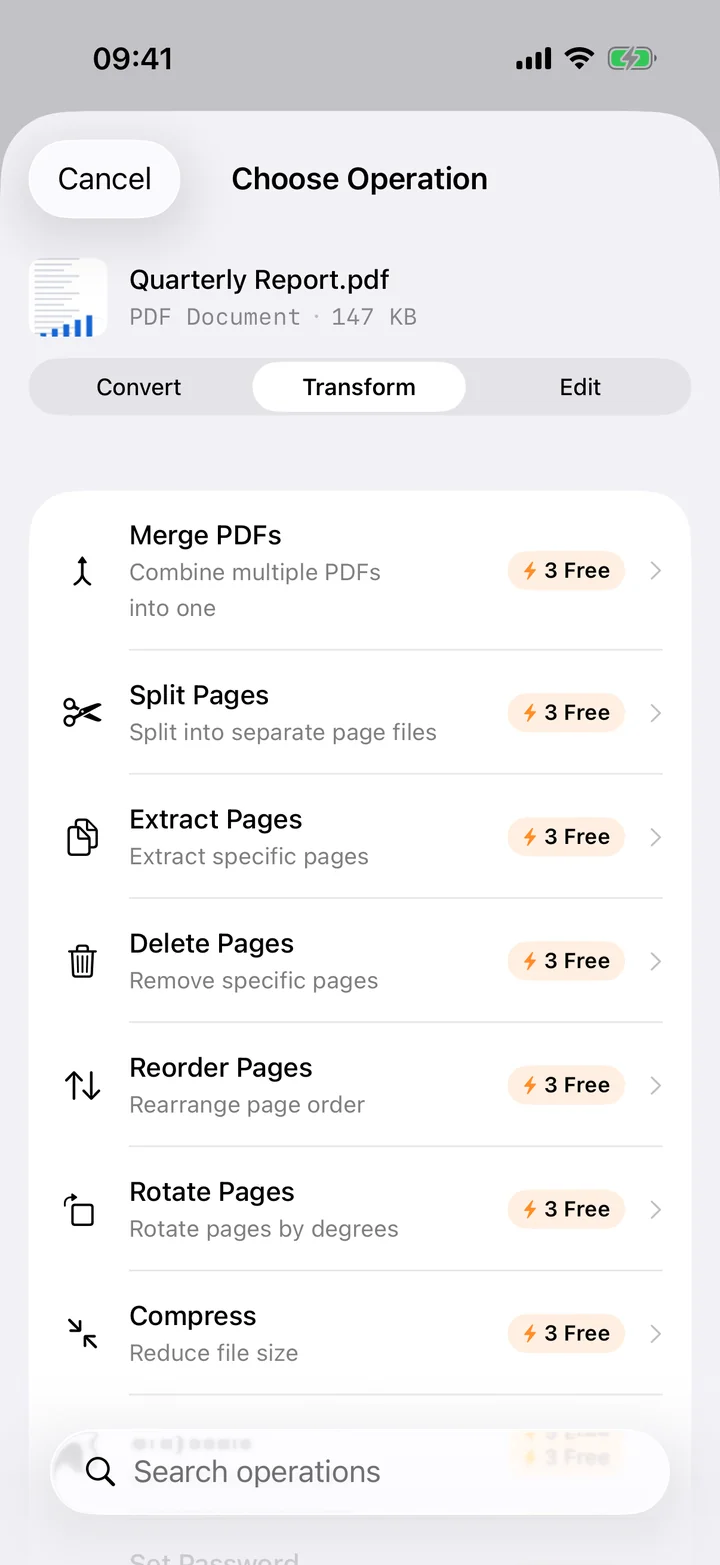
- Choose OCR Overlay. Tap Transform and choose OCR Overlay to run on-device text recognition.
- Save or share. Tap Convert. The PDF saves locally with a searchable text layer, unchanged visually.
In the app: Transform → OCR Overlay.
Why make a scanned PDF searchable?
A searchable PDF lets you find a name, a date or an amount instantly instead of scrolling through pages by eye. It also makes the document usable downstream — you can select and copy text, or run PDF to Text or PDF to Word on it, none of which work on a plain image scan.
Is it private?
Yes. Unlike web converters that upload your files to a server, Filemorph converts every file locally using Apple's frameworks. Nothing leaves your device, and it works with no internet connection. This operation is part of Filemorph Pro ($29.99/year, 7-day free trial on monthly and annual plans).