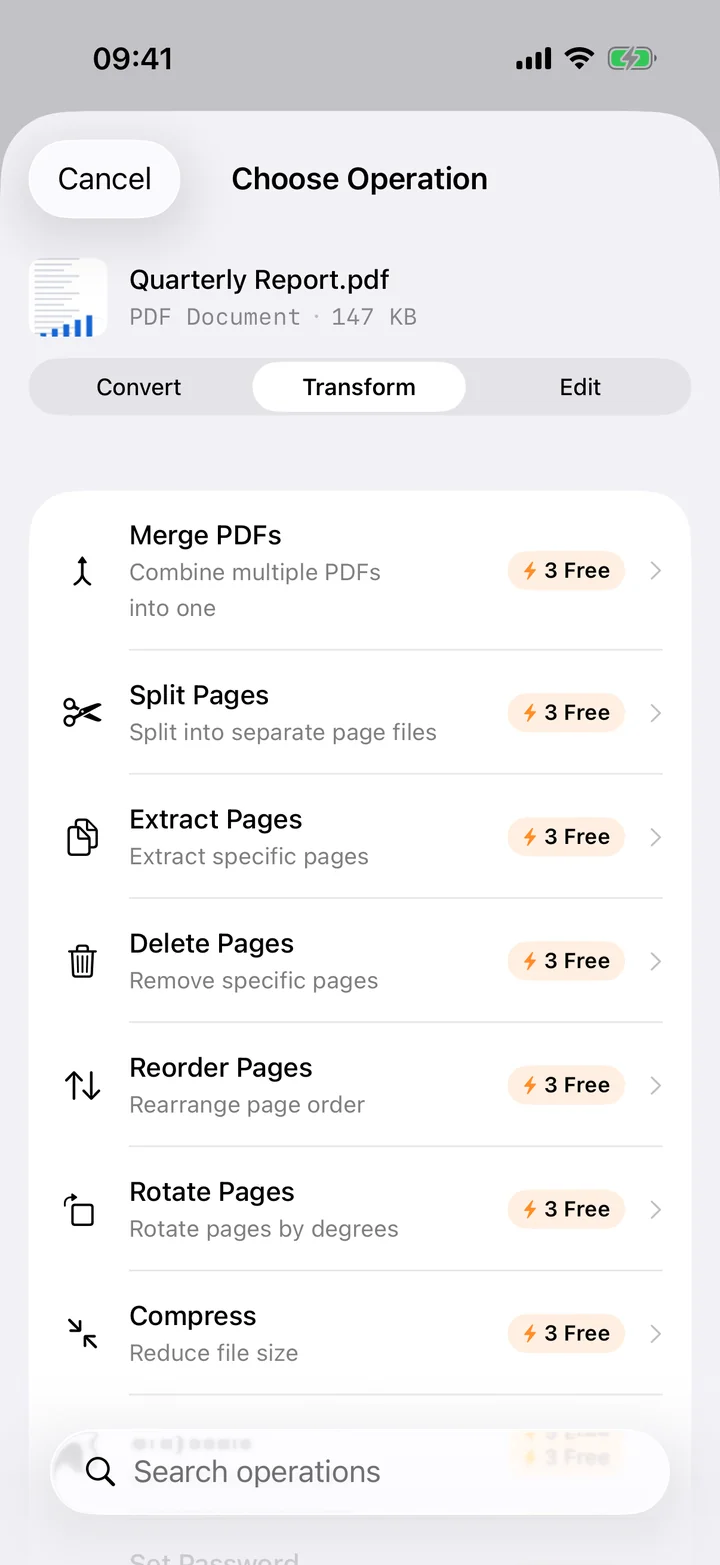
Scanned documents come out sideways more often than not, and a landscape page mixed into a portrait PDF looks wrong in every viewer until someone fixes it. Filemorph lets you rotate individual pages, or the whole document, without re-scanning anything.
Filemorph reads the PDF with Apple's PDFKit and writes each page's rotation directly into the new file — a lossless change, since the page content itself is untouched, only its orientation. Rotate a single sideways scan, a run of pages, or the entire document in one pass.
How to rotate a PDF on iPhone
Pro
- Add your PDF. Open Filemorph and pick the PDF from Files, Photos or the Share sheet.
- Choose Rotate Pages. Tap Transform, choose Rotate Pages, then pick the pages and the angle.
- Save or share. Tap Convert. The corrected PDF saves locally — share it or replace the original.
In the app: Transform → Rotate Pages.
Why rotate a PDF?
A sideways page forces every reader to tilt their phone or turn their laptop to read it. Rotating it once, before you send or file the document, fixes the problem for everyone who opens it afterward, on any device.
Is it private?
Yes. Unlike web converters that upload your files to a server, Filemorph converts every file locally using Apple's frameworks. Nothing leaves your device, and it works with no internet connection. This operation is part of Filemorph Pro ($29.99/year, 7-day free trial on monthly and annual plans).