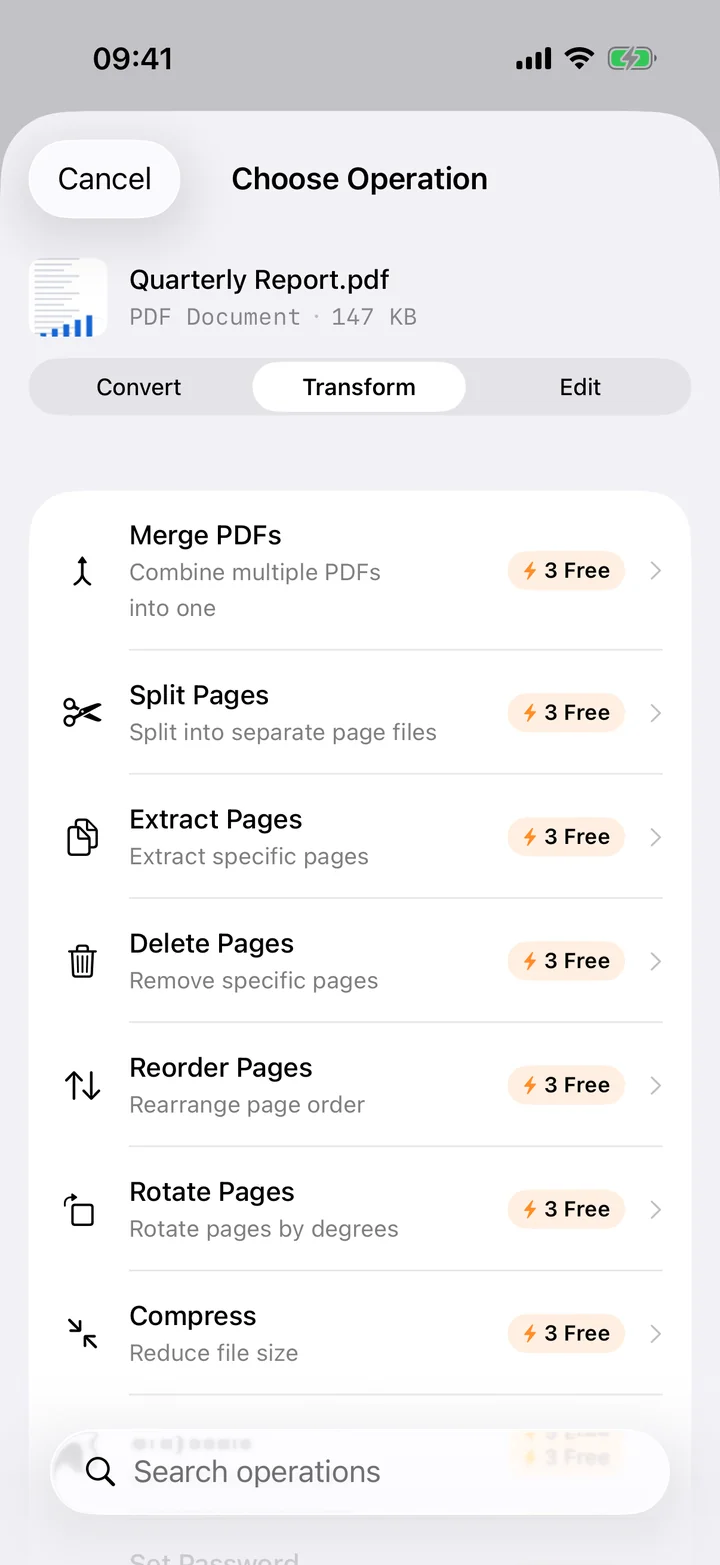
A boarding pass, a flyer, a signed form: sometimes you need one page as a plain image, not a whole PDF. Filemorph renders every page of a PDF to its own JPG file, so you can drop a single page into Messages, a slideshow or a website without carrying the rest of the document.
Filemorph rasterizes each page with Apple's PDFKit at a resolution you choose, then encodes it as JPG. A multi-page PDF produces one JPG per page, named and ordered to match; a scanned document keeps its original detail as long as you pick a high-enough DPI. Pick PNG instead for a lossless render — the same option is a tap away.
How to convert PDF to JPG on iPhone
Pro
- Add your PDF. Open Filemorph and pick the PDF from Files, Photos or the Share sheet.
- Choose Images (JPEG). Tap Convert, choose To Images, then pick JPEG and a resolution.
- Save or share. Tap Convert. Each page saves as its own JPG — share one page or the whole set.
In the app: Convert → To Images (JPEG).
Why convert PDF to JPG?
JPG opens everywhere a PDF might not: Messages, social apps, slide decks and most upload forms that only accept images. Converting a page to JPG also makes it easy to crop, annotate or drop into a photo editor, none of which is straightforward with a PDF page.
Is it private?
Yes. Unlike web converters that upload your files to a server, Filemorph converts every file locally using Apple's frameworks. Nothing leaves your device, and it works with no internet connection. This operation is part of Filemorph Pro ($29.99/year, 7-day free trial on monthly and annual plans).