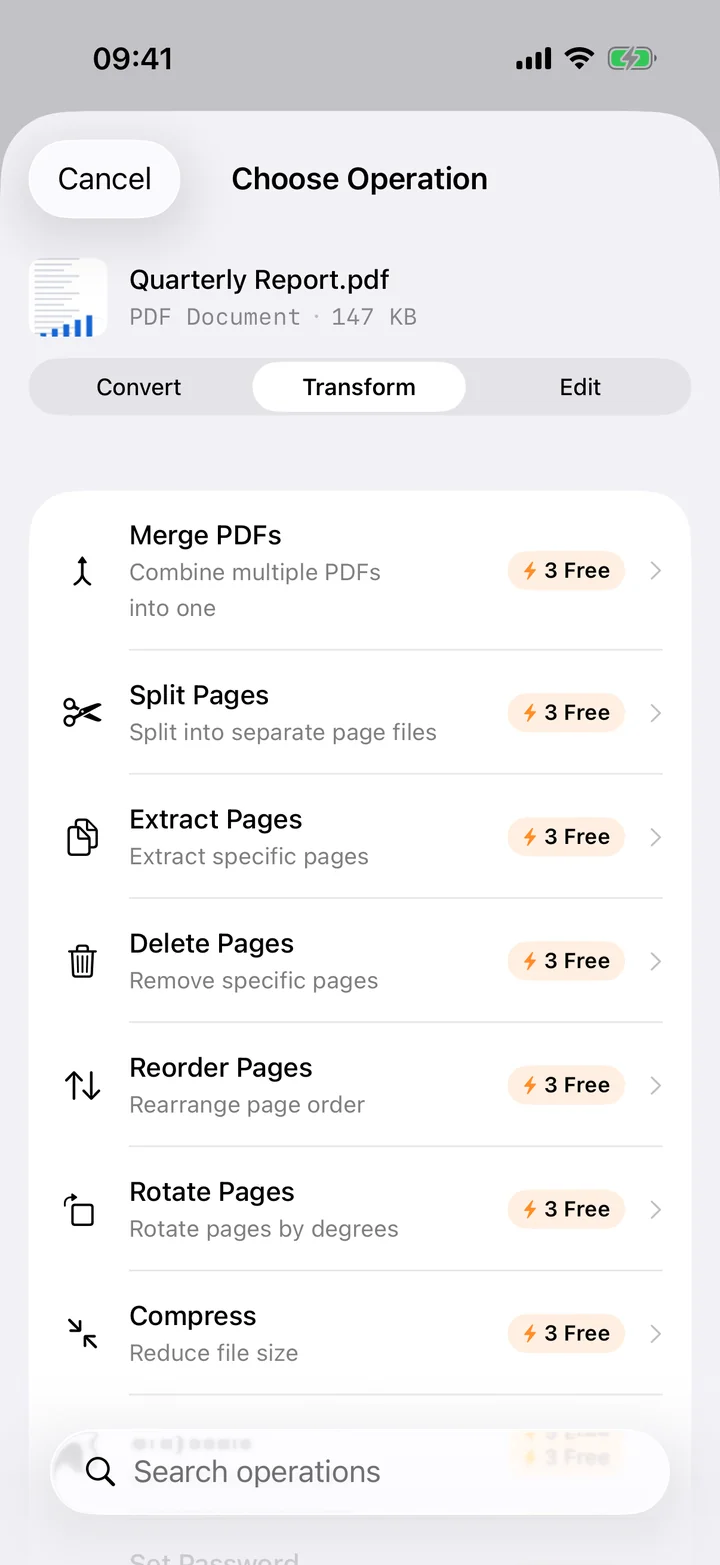
Dropping a PDF page into a slide deck or a document editor usually calls for an image, and a lossless one at that — screenshots of PDF pages get soft fast if they pass through JPG first. Filemorph renders each page directly from the PDF at full quality and saves it as PNG.
Filemorph uses Apple's PDFKit to rasterize each page at a DPI you set, then encodes the result as PNG — no recompression, no artifacts. A ten-page PDF becomes ten PNG files in page order. For photos or scanned pages where file size matters more than pixel-perfect edges, JPG is the better pick and sits right next to PNG in the same step.
How to convert PDF to PNG on iPhone
Pro
- Add your PDF. Open Filemorph and pick the PDF from Files, Photos or the Share sheet.
- Choose Images (PNG). Tap Convert, choose To Images, then pick PNG and a resolution.
- Save or share. Tap Convert. Each page saves as its own PNG — share one page or the whole set.
In the app: Convert → To Images (PNG).
Why convert PDF to PNG?
PNG keeps every pixel of a rendered PDF page, which matters for diagrams, screenshots, text-heavy slides and anything you plan to zoom into or edit further. It is the safer default when you are not sure whether a page will end up printed, projected or dropped into another document.
Is it private?
Yes. Unlike web converters that upload your files to a server, Filemorph converts every file locally using Apple's frameworks. Nothing leaves your device, and it works with no internet connection. This operation is part of Filemorph Pro ($29.99/year, 7-day free trial on monthly and annual plans).