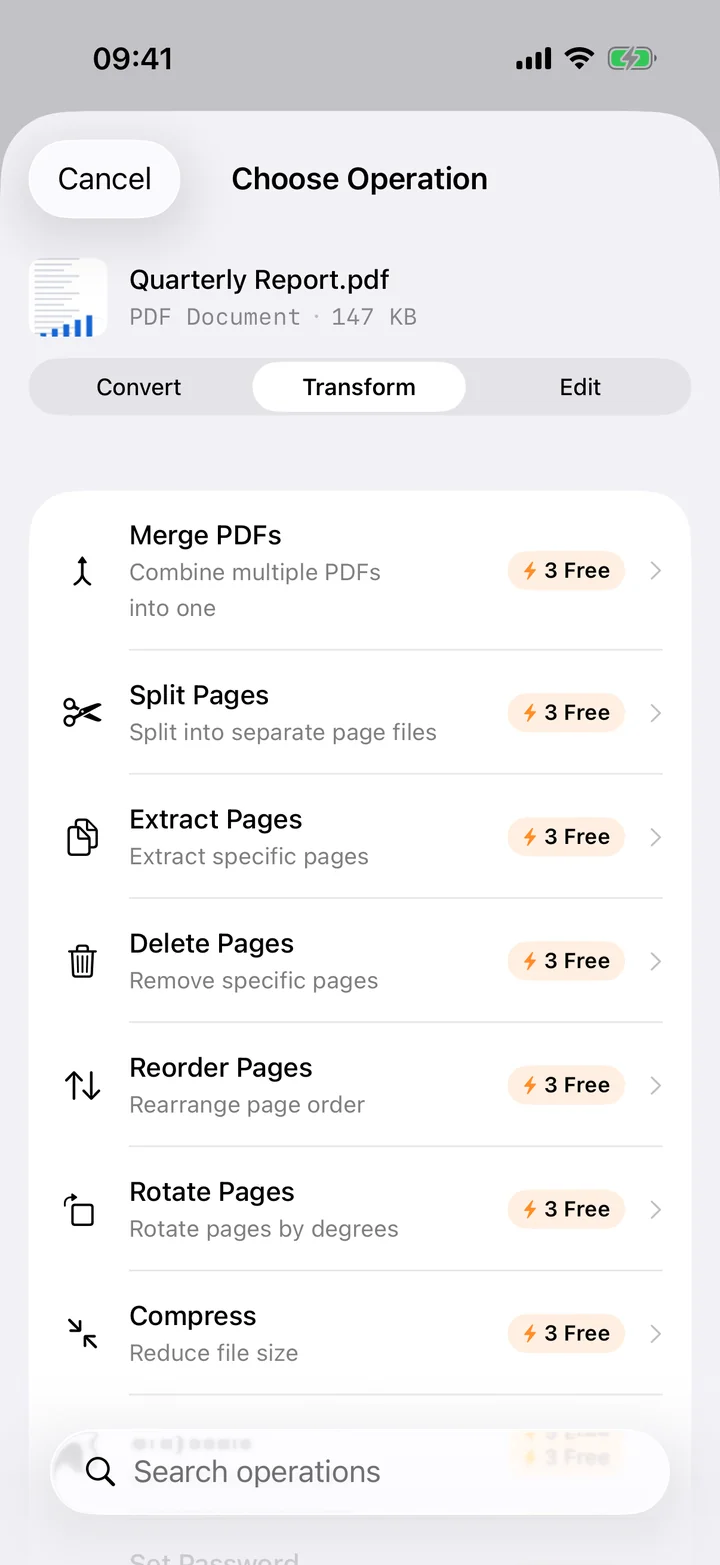
Some password-protected PDFs stay locked long after they need to be — a statement you saved from your own bank, a form you protected yourself and no longer need to, a document you were given the password to along with permission to share it further. Filemorph removes the password so the file opens freely from then on.
This is not a password-recovery or cracking tool. You provide the correct password, Filemorph verifies it with Apple's PDFKit, and writes out an unprotected copy — there is no attempt to guess, brute-force or bypass a password you do not have. If you do not know the password, Filemorph cannot help; that is by design.
How to remove a password from a PDF on iPhone
Pro
- Add your locked PDF. Open Filemorph and pick the password-protected PDF from Files or the Share sheet.
- Choose Remove Password. Tap Transform, choose Remove Password, then enter the current password.
- Save or share. Tap Convert. The unlocked PDF saves locally, ready to open without a password.
In the app: Transform → Remove Password.
Why remove a PDF password?
A password you no longer need slows down every future access to the file, for you and for anyone you share it with. Removing it once, with the password you already have, is quicker than retyping it every time the document is opened.
Is it private?
Yes. Unlike web converters that upload your files to a server, Filemorph converts every file locally using Apple's frameworks. Nothing leaves your device, and it works with no internet connection. This operation is part of Filemorph Pro ($29.99/year, 7-day free trial on monthly and annual plans).